ClassroomScreen is an online classroom screen: one board on your projector or interactive whiteboard that holds the timer, the name picker, the noise meter and the instructions for your lesson. This guide takes you from a blank board to a lesson you can run from the keyboard.
What is ClassroomScreen?
ClassroomScreen gives you 22 widgets that you arrange on a screen your whole class can see. Teachers use it to:
- show clear instructions and the learning goal,
- time activities and transitions,
- pick students fairly and make groups,
- keep the noise level down,
- check in on how the class is feeling,
- move through a lesson plan step by step.
It runs in the browser on any laptop, classroom PC, projector or smartboard. There is nothing to install.
Open the board
Go to the board and start teaching. You don't need an account: your boards, screens and class lists save automatically in the browser you are using.
You only need to sign in if you upgrade to Pro (see Basic and Pro).
Add widgets
Widgets are the building blocks of every screen. The dock at the bottom of the board holds your favourites.
- Click a widget in the dock to add it to the screen.
- Click All widgets to see the full list, grouped into Time, Choose & group, Class management, Text & content and Media. You can search it too.
- Drag a widget by its top bar to move it, and drag a corner to resize it.
- Click a widget to select it, then use the settings button on its toolbar to change it: the timer length, the class list a picker uses, the text on a sticky note.
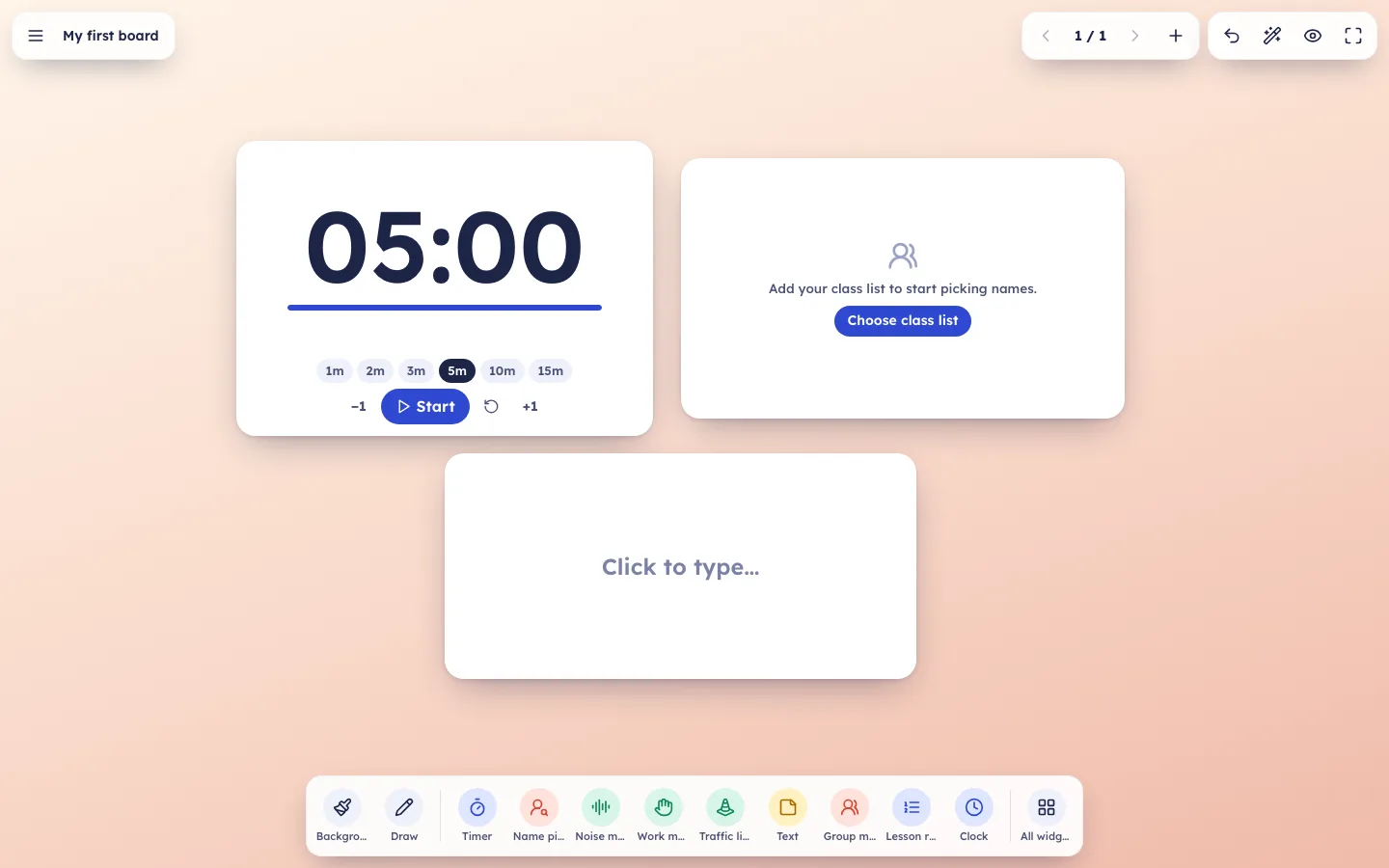
A board with a timer, a name picker and a text note. The dock sits at the bottom.
The widgets teachers reach for first:
- Timer: a big countdown with presets and a gentle chime.
- Name picker: picks a random student, with no repeats until everyone has had a turn.
- Noise meter: a live sound level that rewards quiet minutes. Sound is measured in the browser and is never recorded.
- Group maker: splits the class into even groups and can keep chosen pairs apart.
- Lesson runner: your lesson as timed steps that move on by themselves.
- Text: instructions, goals or questions on a sticky note.
See all 22 on the widgets list, or try any one on its own on the classroom tools pages.
Boards and screens
A board is a set of screens, like slides in a presentation. Many teachers keep one board per class or per day, with a screen for each part of the lesson: arrival, the main task, group work and the exit ticket.
- Add a screen with the + button at the top of the board, and switch screens with the arrows next to it.
- Open the menu (top left) to see My boards, where you can make a new board or rename, duplicate and delete one.
- Each screen keeps its own widgets and background.
Start from a template
Short on time? Open the menu and choose Start from a template. Each template is a ready-made board that becomes your own copy to edit:
- Morning routine
- Lesson runner
- Group work
- Quiet test time
- Exit ticket
- Brain break
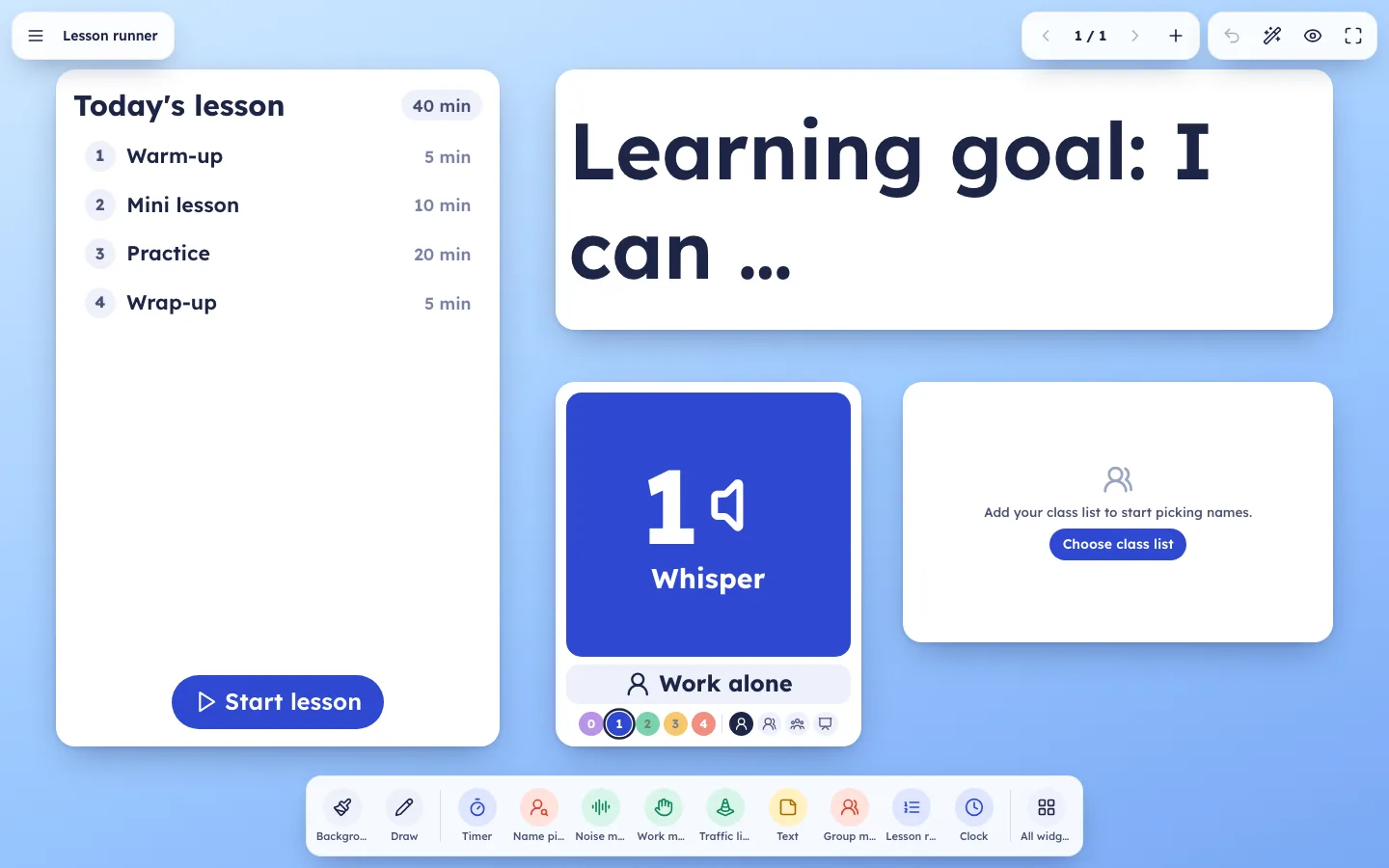
The Lesson runner template, ready to edit.
Class lists
Type each class roster once and every name picker, spin wheel and group maker can use it.
- Open the menu and choose Class lists.
- Click New class, give it a name and paste the names, one per line or separated by commas.
- Under Who's here today?, tap a name to mark that student absent. Absent students are skipped by pickers and groups.
Basic includes up to 5 class lists. Pro removes the limit.
Run a lesson step by step
The Lesson runner widget turns your plan into timed steps, for example "Warm-up, 5 minutes", "Reading, 15 minutes", "Discussion, 10 minutes". When a step's time runs out, a chime plays and the next step starts by itself. If you prefer to press Next step yourself, turn off Move on automatically in the widget's settings.
Backgrounds
Click Background in the dock to change the current screen's background: gradients, paper styles such as lined or grid paper, solid colours, or a photo. You can also upload your own photo. Use the Dim photo slider to darken a busy picture so your widgets stay easy to read.
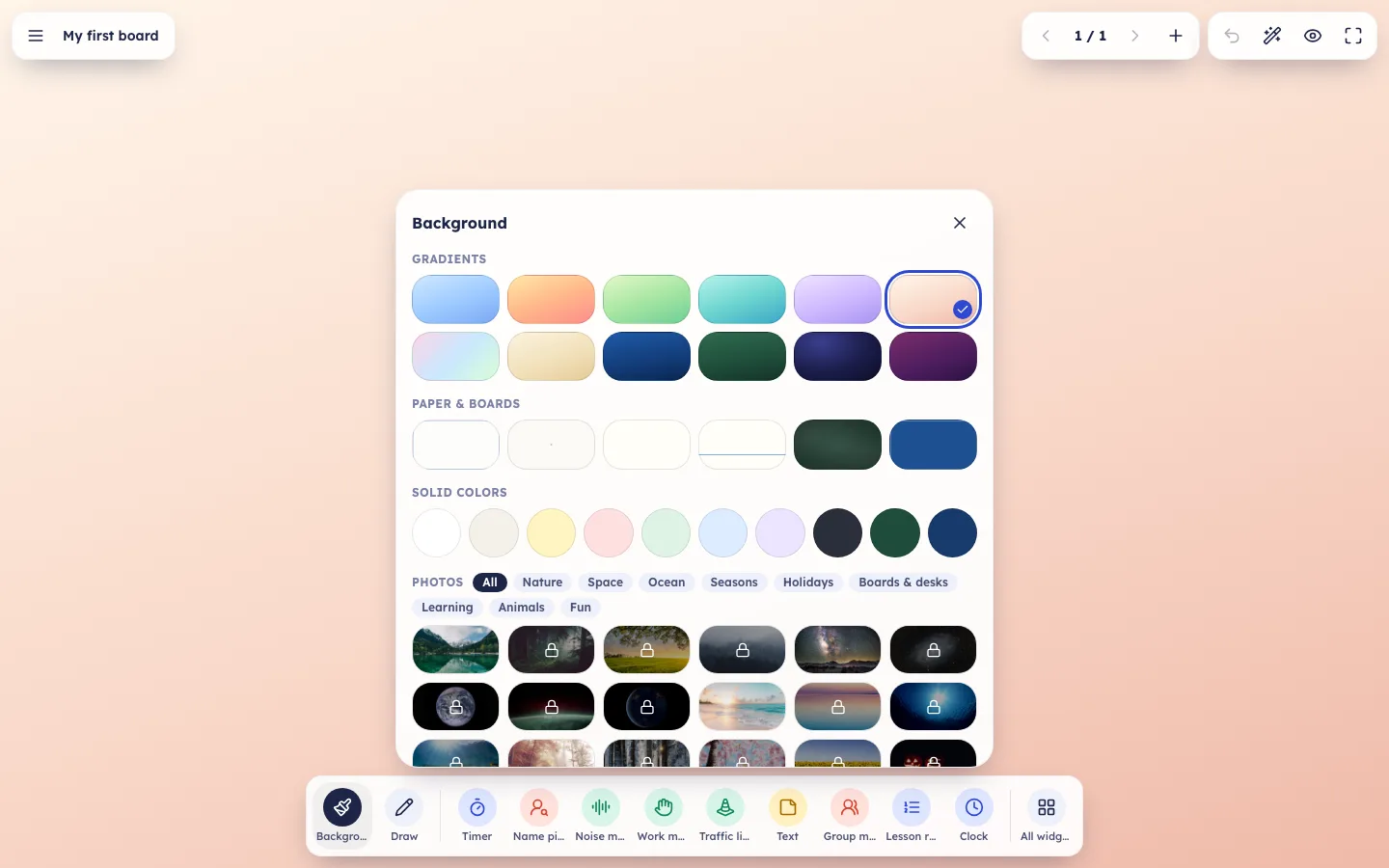
The background panel. Locked photos are part of Pro.
Basic includes 10 photo backgrounds. Pro unlocks all of them, saves your uploads in My photos so you can reuse them on any screen, and adds a Slideshow that changes the background on a timer.
Present to your class
When you are ready to teach:
- Press F for full screen.
- Press P for focus mode. Toolbars and widget buttons disappear, so students only see your content. Press Esc to come back.
- Press D to draw or highlight on top of the screen.
- Press T to tidy the layout into neat rows.
Widgets are placed in proportion to the screen, so a board you build on your laptop looks the same on a projector, a classroom TV or a 4:3 smartboard.
Keyboard shortcuts
| Keys | What it does |
|---|---|
← → or PgUp PgDn | Previous / next screen |
| Space | Start or pause the selected timer |
Del or ⌫ | Remove the selected widget |
| CtrlZ | Undo |
| F | Full screen |
| P | Focus mode: hide every control |
| D | Draw on the screen |
| T | Tidy up the layout |
| Esc | Leave drawing or focus mode, deselect |
| ? | Show the shortcut list on the board |
Saving and privacy
Everything you make is stored in your browser on this device. Nothing is uploaded, so your boards and class lists stay private to you. The noise meter and the webcam widget process sound and video locally and never record or send them anywhere.
Because data stays on the device, a board you build at home won't appear on your school computer.
Basic and Pro
Basic is free and includes all 22 widgets, templates, unlimited boards and screens, automatic saving, up to 5 class lists and 10 photo backgrounds.
Pro costs $2.90 a month billed yearly, or $3.90 month to month. It adds unlimited class lists, every photo background, a My photos library and background slideshows. To use Pro, sign in on the browser where you teach. See pricing for details.
Where should I start?
Try this for your next lesson:
- Open the Lesson runner template and replace the steps with your own plan.
- Add your class under Class lists and put a Name picker next to the steps.
- Press F, then P, and teach.